
Automation has become an integral ingredient in the overall recipe that Jira experts use to extend the power of Jira for teams. Automation for Jira (Jira Automation) has become the standard tool for enabling that power. Because these automation rules are critical to reducing the stress on users and teams, Atlassian customers want to ensure business continuity as they move to Cloud.
As with any migration, there are many factors to consider. This article pertains only to migrating the rules built in Automation for Jira when migrating from Server to Cloud.
The Good News
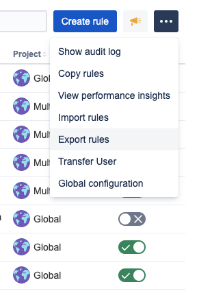
Automation rules can be easily exported by a Jira Administrator (Global).
https://YOUR-JIRA-SERVER-URL/secure/AutomationGlobalAdminAction!default.jspa#/
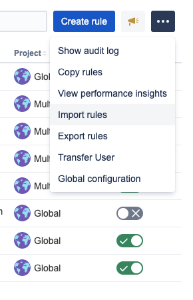
Exported rules can be easily imported into the target instance.
The Less Good News
If elements used in your automation rules don't exist in your target instance, those elements will need to be configured post-migration, in your target environment.
For example, if you're referring to statuses that exist in the source instance, but do not exist in the same workflow in your target instance, you'll need to rewire that element of your automation rule in the target instance.
Here's a Best Practice: Because you're migrating to a completely different platform (there are different code bases between Server and Cloud), it's important to do a post-migration check all of your rules, in order to ensure nothing needs to be reconfigured.
Preparation
For those migrating to an existing Cloud instance, the following recommendations apply:
- Rule names should be unique between the instances. For naming conflicts, rules will be renamed automatically upon import.
- Anything referred to in the automation rules (i.e. statuses, transitions, custom field names, etc.) must be the same on the target instance.
- Re-configuration may still be required, but the chances of success are increased if the names are identical.
- Make note on the page below (or grab a screenshot) of the status of each rule in your source instance (enabled/disabled) so you can enable the right ones after importing all of your rules into the target environment.
https://YOUR-JIRA-SERVER-URL/secure/AutomationGlobalAdminAction!default.jspa#/
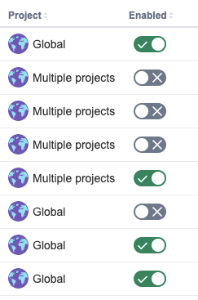
Note: Remember to enable your rules after the migration! Rules are disabled by default when importing.
Follow the simple export/import steps provided in Atlassian's article about how to migrate your rules from Server to Cloud environments: Import and Export Automation Rules
Happy migrating!
 Trevan Householder

 Amanda Kirk
5 MIN READ
Amanda Kirk
5 MIN READ

 Jason Card
